FocusStation
A menu bar task timer that helps you prioritize your day, time-box your work, and stop one task from eating your entire schedule. No accounts, no cloud, no complexity.
Install
Download FocusStation-v1.0.0.zip · 3.0 MB
Unzip and move to Applications
Open the downloaded .zip file and drag FocusStation.app to your /Applications folder.
Run this command to bypass Gatekeeper
The app isn't signed yet, so macOS will block it. Run this once in Terminal, then open the app normally.
xattr -cr /Applications/FocusStation.app
Look for the brain icon in your menu bar
FocusStation runs in your menu bar. If you don't see it, your menu bar might be crowded — try closing other menu bar apps.
Screenshots
Features
Menu bar native
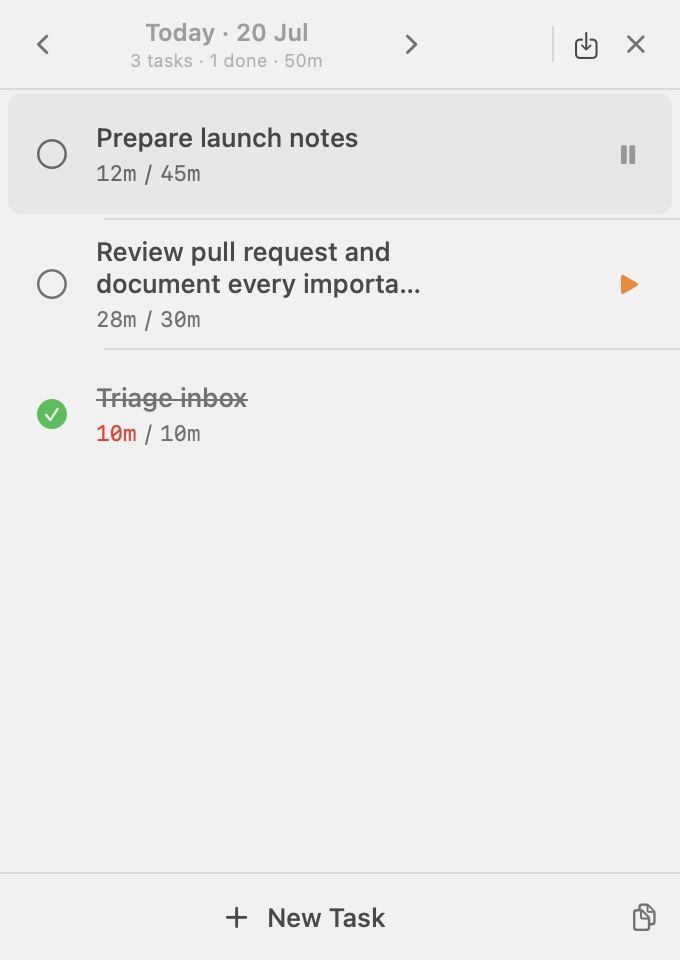
Lives in your menu bar. No dock icon. No window to manage. Always one glance away.
Add tasks inline
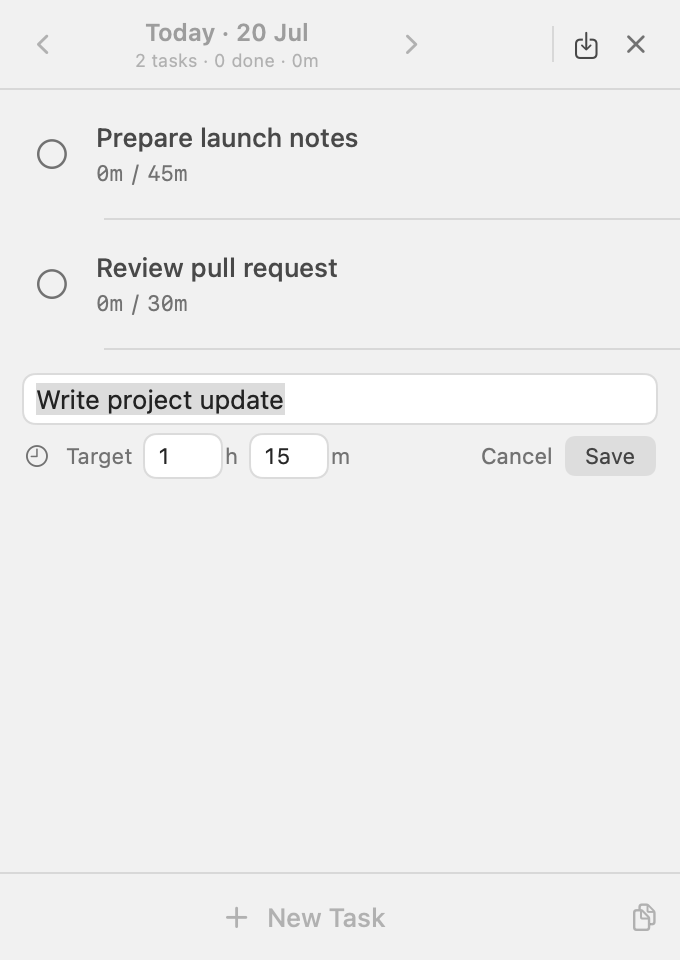
Click “New Task” — a form row appears in the list. Save with Return, cancel with Escape, and keep planning without leaving.
Time-box your work
Set optional target times. Elapsed turns red when past your estimate. No alarms — just data.
One timer at a time
Start a new task, the current one pauses. No toggles. Focus on one thing.
Inline editing
Hover a task, click the pencil icon, edit name or target in place. No modals. The row transforms where it is.
Drag to reorder
Tasks stay in the order you put them. Drag-and-drop is the only way to reorder.
One workspace per day
Execute Today, plan future dates, and review previous days as read-only history from the compact date carousel.
Carry work deliberately
Carry the remaining estimate or repeat the full task on the next day. Nothing silently resets or moves at midnight.
History and CSV export
Review any date in place, then export one day or the complete history through the native macOS Save panel.
Calendar-safe planning
Targets respect the time left before local midnight, including daylight-saving days and existing planned work.
Survives sleep
Close your laptop mid-timer and FocusStation keeps tracking from its absolute start time. Wake the Mac and the elapsed time catches up automatically—no manual resume required.
Zero dependencies
No CocoaPods, no SPM, and no third-party runtime libraries. Native SwiftUI, SwiftData, and AppKit only.
Requirements
macOS 14 (Sonoma) or later. Intel and Apple Silicon supported.
Source Code
github.com/gaju91/focusStationLicense
MIT